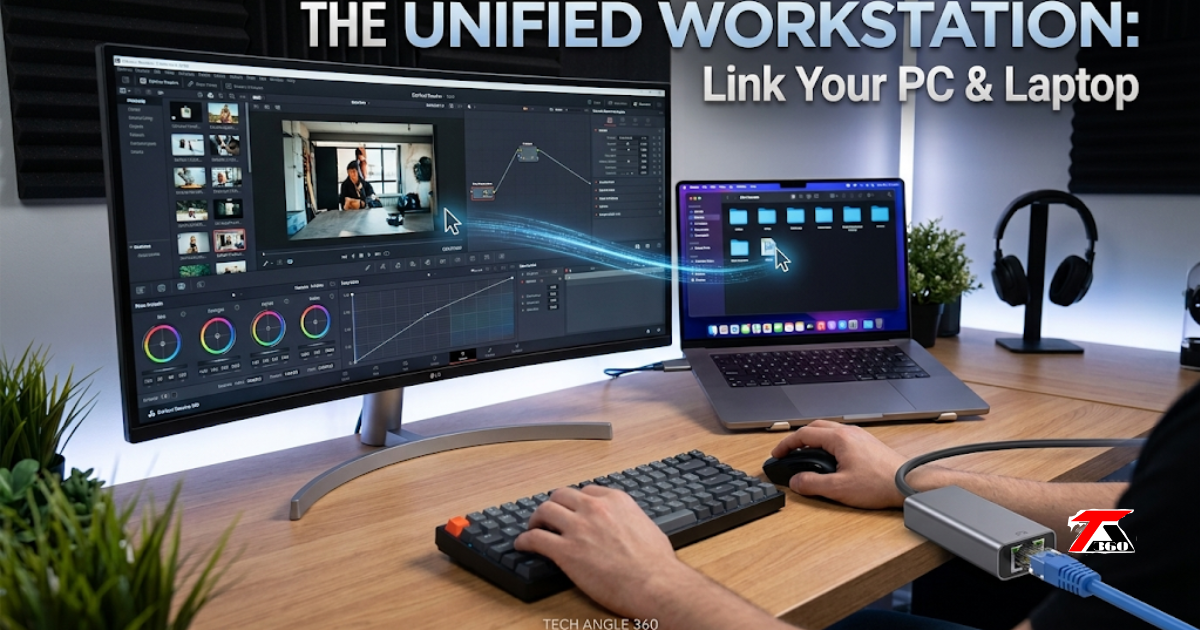
How to Connect Your PC and Laptop: Hello Friends! Welcome back to TechAngle360. Neeraj here. If you have a powerful desktop and a portable machine, juggling two keyboards and transferring files via USB can kill your productivity. Whether you are managing multiple websites, writing code, or editing media, merging your devices into a single, seamless workstation is a game-changer. Here is the ultimate guide to sharing your mouse, keyboard, and storage across two systems.
I have been facing the same problem since I bought my Dell 16 Plus AMD 5 AI 340 laptop, and I want to manage my pc and laptop with one keyboard and mouse without any wired connection. So finally I found this: How to Connect Your PC and Laptop, and now I’m telling you all about it. So let’s start.
How to Connect Your PC and Laptop: –
Friends, here are the best methods to do this with your pc and laptop. So let’s talk all about the step-by-step:
![Mivi [CPS] IN](data:image/svg+xml;base64,PHN2ZyB4bWxucz0iaHR0cDovL3d3dy53My5vcmcvMjAwMC9zdmciIHdpZHRoPSI3MjgiIGhlaWdodD0iOTAiIHZpZXdCb3g9IjAgMCA3MjggOTAiPjxyZWN0IHdpZHRoPSIxMDAlIiBoZWlnaHQ9IjEwMCUiIHN0eWxlPSJmaWxsOiNjZmQ0ZGI7ZmlsbC1vcGFjaXR5OiAwLjE7Ii8+PC9zdmc+)
Sharing One Mouse and Keyboard: –
Friends, this is the main method and very easy to set up. Instead of cluttering your desk, you can control both screens with one set of peripherals using Microsoft’s official utility. It is incredibly lightweight, consuming only about 50 MB of RAM, meaning it will not slow down capable machines like an Acer Nitro or a Dell 16 Plus.
- Download PowerToys: Install the free Microsoft PowerToys app from the Microsoft Store on both computers.
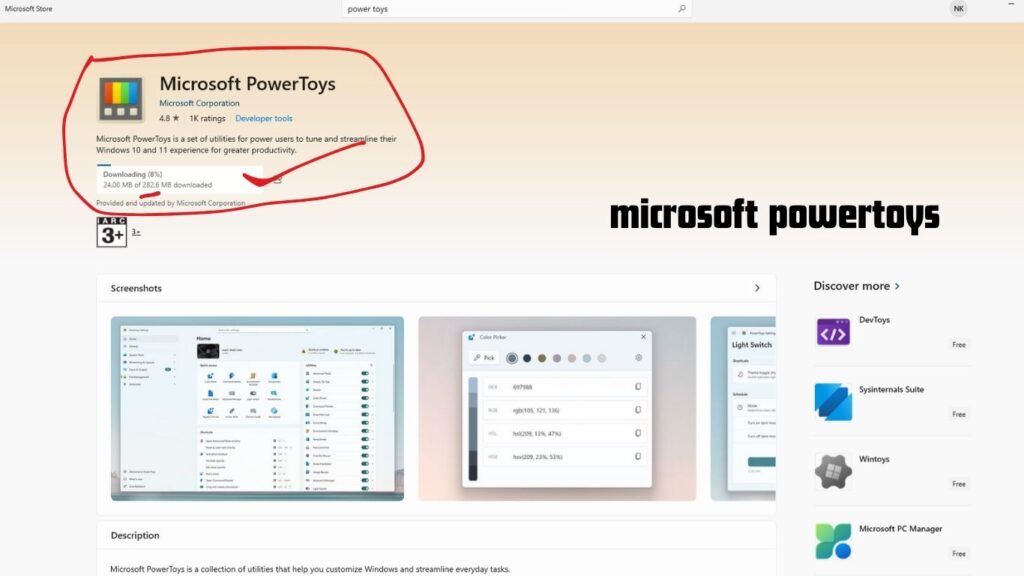
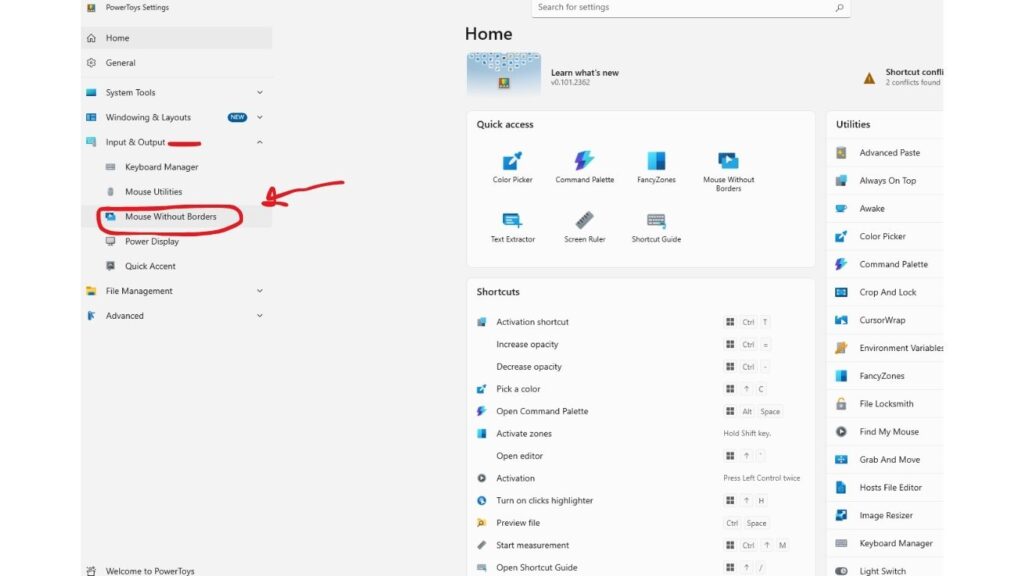
- Enable the Feature: Open the app, navigate to the left menu, and toggle on “Mouse Without Borders.”
- Link the Systems: On your primary desktop, generate a Security Key. Enter this key and your desktop’s name into the PowerToys app on your secondary laptop.
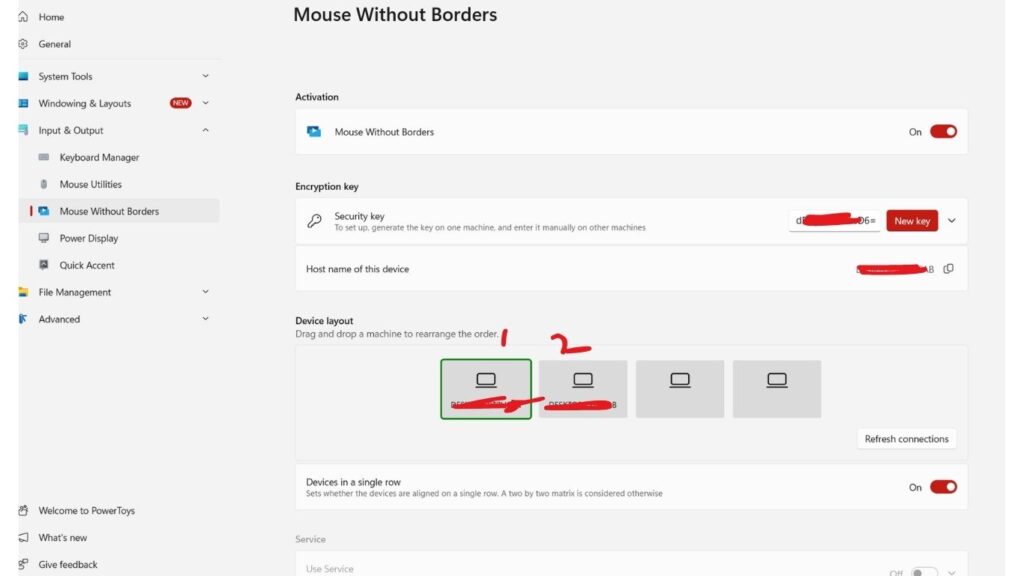
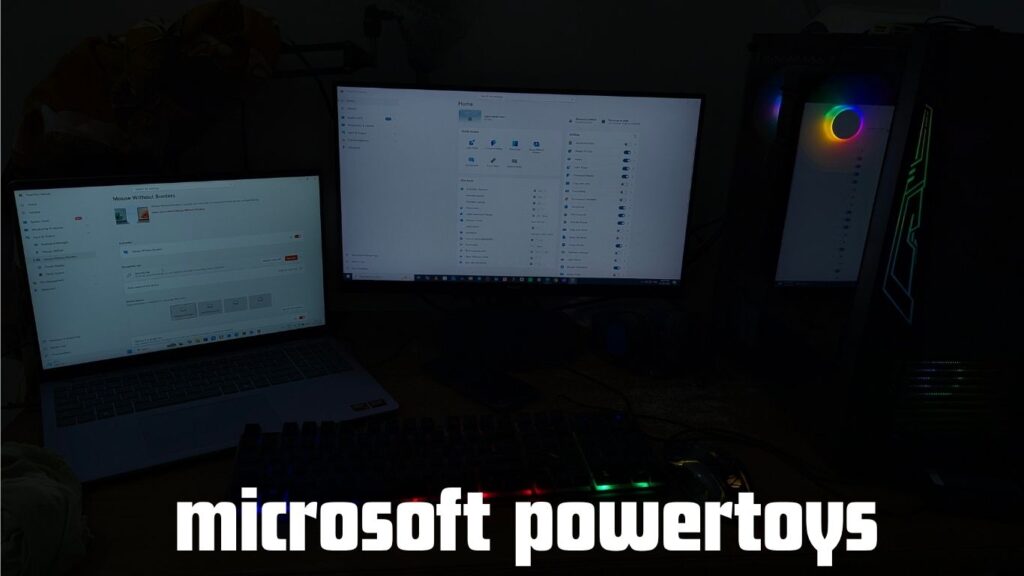
- Arrange Displays: Drag and drop the computer icons in the settings menu to match your physical desk layout for smooth cursor transitions.
![ReneeCosmetics [CPS] IN](data:image/svg+xml;base64,PHN2ZyB4bWxucz0iaHR0cDovL3d3dy53My5vcmcvMjAwMC9zdmciIHdpZHRoPSI3NTAiIGhlaWdodD0iMTAwIiB2aWV3Qm94PSIwIDAgNzUwIDEwMCI+PHJlY3Qgd2lkdGg9IjEwMCUiIGhlaWdodD0iMTAwJSIgc3R5bGU9ImZpbGw6I2NmZDRkYjtmaWxsLW9wYWNpdHk6IDAuMTsiLz48L3N2Zz4=)
High-Speed Network File Sharing (Wired & Wireless): –
If your desktop is wired directly to your router via a LAN cable and your laptop is connected to the same router via Wi-Fi, they are already on the same network. You can share files instantly without running a new cable between them. The router acts as a bridge.
However, Wi-Fi speed depends on your router’s range and capacity. For small documents, it is perfect. But for transferring heavy gigabytes of data, you need a physical wired connection.
Read also: Unboxing & Review Grenaro P10 Wireless Microphone
How To Buy a Perfect Laptop in 2026!
The Problem: What if your laptop doesn’t have a LAN port? Many modern laptops skip the traditional bulky Ethernet (RJ45) port to keep the design thin. If you are a creator dealing with massive video files and need wired transfer speeds, relying on Wi-Fi will slow down your workflow.
The Solution: Use a Type-C to Ethernet Adapter. You can easily bypass this hardware limitation by purchasing an affordable Type-C to Ethernet (LAN) Adapter (or a standard USB 3.0 to LAN adapter).
- Plug the Type-C end into your laptop.
- Connect a standard LAN cable from the adapter directly to your router (or directly to your PC if you are setting up an offline physical network).
- This instantly upgrades your laptop to gigabit-wired speeds, making massive file transfers happen in seconds rather than minutes.
How to Set Up the Shared Folder (Once Connected):
- Turn on Network Discovery: Navigate to Control Panel > Network and Sharing Center > Advanced sharing settings on both machines and enable Network Discovery.
- Disable Password Protection: Under the “All Networks” tab, turn off password-protected sharing so you do not have to log in every time.
- Share a Drive: Right-click the folder or drive (like your D: Drive) you want to share, go to Properties > Sharing > Advanced Sharing, and grant “Full Control.”
- Access Instantly: Open File Explorer on your second device, click “Network” in the sidebar, double-click your desktop’s name, and access your data seamlessly.
Pro-Tips for Heavy Workloads: –
While this setup feels like magic for multitasking, heavy software requires a strategic approach.
- Local Editing is Key: If you are editing 4K video in software like DaVinci Resolve, always keep your raw footage and cache on your local SSD to avoid timeline stuttering over Wi-Fi.
- Fix Connectivity Drops: If the mouse stops crossing screens, go to the PowerToys General settings and enable “Always run as administrator.”
- Automate the Setup: Toggle on “Run at startup” so your unified workspace is ready the moment you boot your computers.
Conclusion: Work Smarter, Not Harder –
Finally, connecting your PC and laptop into one unified system does not require expensive hardware or complicated coding. By using Microsoft PowerToys for a shared mouse and keyboard, and setting up a basic local network for file sharing, you can instantly double your productivity. Even if your laptop lacks a built-in internet port, a simple Type-C to Ethernet adapter will keep your heavy file transfers lightning-fast. Set this up once, and you will never want to go back to using two separate keyboards again!
Did this guide help you clean up your desk and speed up your daily workflow? Don’t miss out on more tech tips! Follow the Blog, Bookmark Tech Angle 360, and subscribe to our newsletter for the latest tech hacks, software guides, and hardware reviews. Watch the Video: Subscribe to our YouTube channel for visual, step-by-step tutorials on setups just like this one.
Frequently Asked Questions (FAQ): –
- Can I combine the processing power of both computers? No, Windows cannot merge CPUs or RAM for general tasks. However, some high-end 3D rendering software allows for network rendering to share GPU loads.
- Is there any lag when typing or moving the mouse? For standard web browsing, typing, and video editing, latency is essentially zero. You will only notice lag if you attempt fast-paced competitive gaming on the secondary screen.
- Can I completely combine the CPU and RAM of my PC and laptop? No, Windows operating systems do not allow you to merge the processing power (CPU/RAM) of two separate computers for everyday tasks. However, you can seamlessly share one mouse, keyboard, and file storage to make them feel like a single unified workstation.
- How do I control both computers with just one mouse and keyboard? You can use Microsoft’s official, free tool called PowerToys (specifically the “Mouse Without Borders” feature). Once installed on both systems and connected via the same network, your mouse cursor will effortlessly cross over from your main monitor to your laptop screen.
- Will running Mouse Without Borders slow down my system? Not at all. PowerToys is very lightweight, consuming only about 50 MB to 150 MB of RAM and barely 1% of your CPU. Whether you are running it on a high-performance machine like a Dell 16 Plus or an Acer Nitro, you will not notice any performance drops.
- My laptop does not have a LAN port. How can I get high-speed file sharing? Since many modern laptops skip the Ethernet port, you can easily use a Type-C to Ethernet Adapter. Just plug it into your laptop’s Type-C port and connect a standard LAN cable to your router. This gives you gigabit speeds for massive file transfers without needing built-in hardware.
- Is there any delay or lag when moving the mouse between screens? For standard tasks like typing, web browsing, or timeline scrubbing, the delay is essentially zero. It feels completely instant. The only time you might notice micro-stutters is if you try to play fast-paced competitive games across the network bridge.
- Can I edit 4K videos directly from the shared network drive? While you can access files over the network, editing heavy 4K footage directly over Wi-Fi is not recommended due to lag and stuttering. If you are using software like DaVinci Resolve, always copy the raw files to your local SSD first, edit them, and then transfer the final exported video back over the network.
- Why does Mouse Without Borders suddenly stop working in the background? This usually happens due to Windows permission blocks. To fix it, open PowerToys, go to General Settings, and turn on “Always run as administrator”. Also, ensure “Run at startup” is enabled so it connects automatically when you turn on your devices.
- Do I need an active internet connection for this setup to work? No, you do not need active internet (data) to share files or your mouse. Both devices just need to be connected to the same local network (the same Wi-Fi router), even if that router is currently offline from the main internet service provider.
- Can I drag and drop files from my PC directly to my laptop screen? Yes! With Mouse Without Borders enabled, you can drag small files (like images or text documents) across the edge of your screen and drop them onto the other system. For transferring huge folders, using the Network Folder Sharing method via LAN is much faster.
- Can I share a single clipboard between the two computers? Yes. Once connected, your clipboard is synced. You can copy a link, a piece of code, or text on your desktop and instantly press Ctrl+V to paste it onto your laptop.